
● Run · For each business
Client portal
the business's own page.
A page for the business itself, at https://
01Switch it on
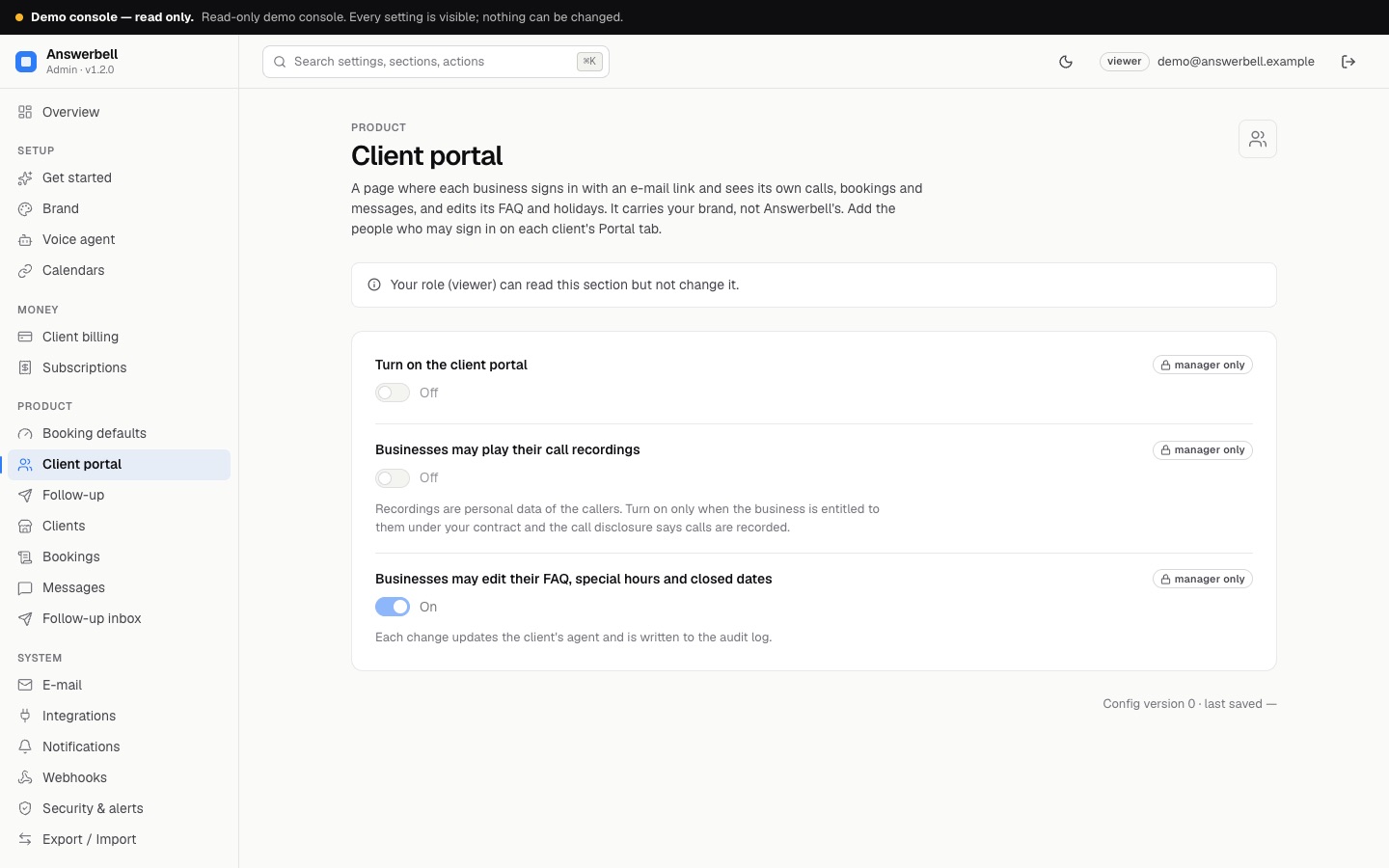
- Settings → Client portal: turn on the portal. Choose whether businesses may play their call recordings and whether they may edit their FAQ, special hours and closed dates.
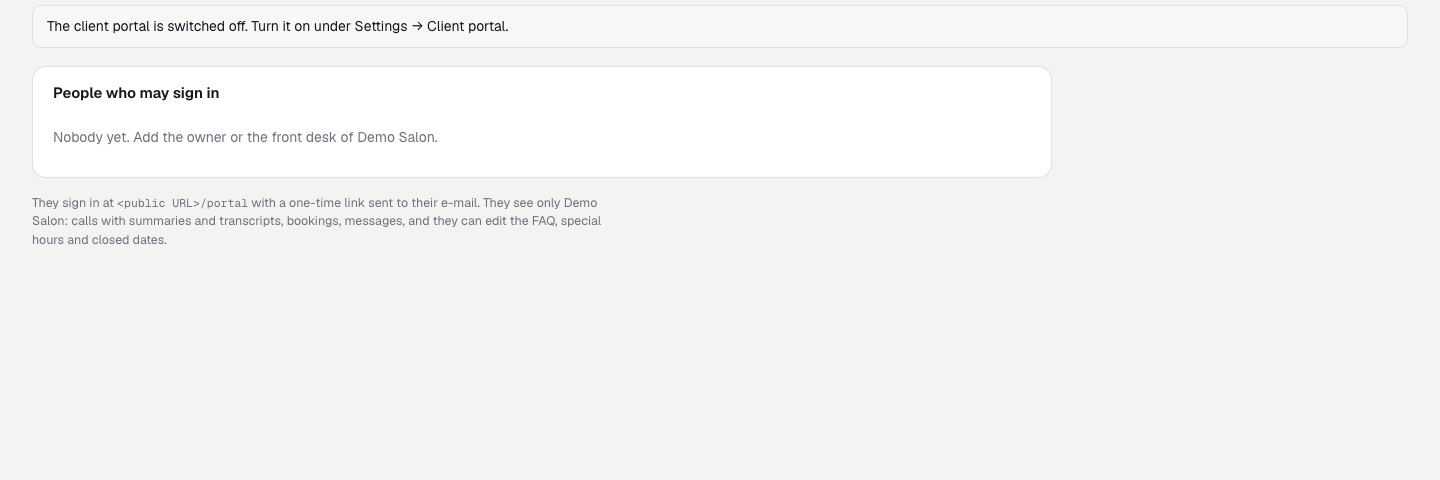
- On each client's Portal tab: add the e-mail addresses that may sign in (up to 10).
- Send the business the address
https://<your public URL>/portal.
02Who signs in
The people on the client's Portal tab enter their address and get a sign-in link valid once for 20 minutes; the session lasts 30 days. Removing a person signs them out at once. The login page answers the same for known and unknown addresses.
03What they see and may change
- their own calls (summaries, mood, transcript; recordings only if you allow it)
- upcoming bookings (they can cancel) and messages (they can mark them handled)
- the monthly report
- Payments and invoices: opens Stripe's own billing page (card, invoices, cancel)
- if you allow it, they edit their FAQ, special hours and closed dates, which updates their agent
Numbers are masked. Every action is in your audit log as portal:<their e-mail>.
Recordings are personal data
Allow them only when your contract with the business covers it and the opening sentence says calls are recorded.